Motherboards Explained: A Beginner's Guide

Motherboards Explained: A Beginner's Guide

A clear, beginner-friendly breakdown of what a motherboard does and why it's the backbone of every PC.

When people talk about building or buying a PC, you'll always hear the word "motherboard" come up — but almost nobody explains what it actually is in plain English. It's not the most exciting-sounding component. It doesn't make your PC faster on its own. It doesn't store your files. So what does it even do? The honest answer: without a motherboard, your computer is just a pile of expensive parts that do absolutely nothing. This guide will change that, once and for all.

What Is a Motherboard, Really?

The Best Way to Think About It

Imagine your computer is a city. The CPU (processor) is the city hall — the brain making all the decisions. The RAM is the open desk space where current work gets spread out. The storage drive is the filing cabinet where everything is saved long-term. The graphics card is the artist's studio handling all the visuals.

Now — who builds the roads connecting all of these places? Who makes sure the city hall can talk to the filing cabinet, or that the artist's studio gets power? That's the motherboard. It's the roads, the power grid, and the communication network of your entire PC, all rolled into one large circuit board.

Every single component in your computer — the processor, the memory, the storage, the graphics card, the USB ports, the fans — either sits directly on the motherboard or connects to it. Nothing in your PC works in isolation. Everything flows through the motherboard.

Quick stat: A modern motherboard can have over 1,000 individual components soldered onto it — capacitors, chips, connectors, and circuits — all working together invisibly every time you turn your PC on.

What Does It Actually Do?

The motherboard has three main jobs, and they're all happening at the same time, all the time:

1. It connects everything. Every part of your PC plugs into the motherboard — directly or through a cable. Your processor sits in a slot on the motherboard called the CPU socket. Your RAM slots into the memory slots. Your graphics card plugs into a long slot called a PCIe slot. Your storage drives connect via SATA cables or M.2 slots. Even your keyboard and mouse ultimately connect back to the motherboard through the ports on the back of your case.

2. It lets everything communicate. A CPU on its own can't do anything without data coming from your RAM. Your RAM can't store anything without instructions from the CPU. The motherboard is what allows these parts to send information back and forth, at incredible speed, thousands of times every second. The pathways that carry this data are called buses — think of them as motorways inside the board.

3. It distributes power. Your power supply (PSU) sends electricity into the motherboard, and the motherboard then distributes the right amount of power to every component — making sure your CPU gets what it needs, your RAM gets what it needs, and so on. Without this, components would either not receive power or receive too much and get damaged.

Quick tip: If your PC refuses to turn on, or some components aren't being detected, the motherboard is often the first suspect — it controls everything.

The Key Parts of a Motherboard — Explained Simply

1. The CPU Socket

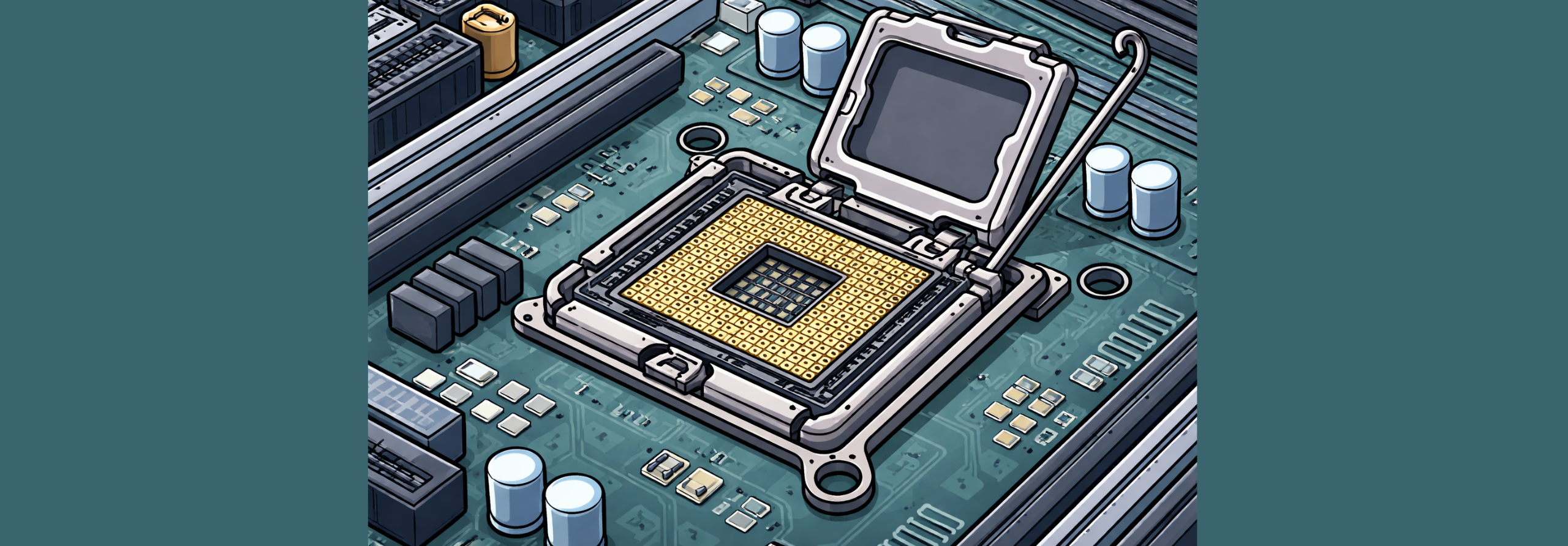
This is the most important part of the motherboard. It's a square slot — usually surrounded by a metal frame — where your processor (CPU) sits. The socket type determines which processors will physically fit into your motherboard. An Intel processor and an AMD processor use completely different sockets, and they are not interchangeable.

This matters enormously when buying parts — if your CPU and motherboard have mismatched sockets, the processor simply won't fit, and your build won't work at all.

Quick tip: Always check that your CPU and motherboard share the same socket type before buying. Common ones in 2026 are AM5 (for AMD) and LGA1851 (for Intel).

CPU socket on a motherboard

2. RAM Slots (Memory Slots)

These are the long, thin slots — usually two or four of them — where your RAM sticks get inserted. RAM is the short-term memory of your computer. The more RAM you have, the more things your computer can handle at once without slowing down.

The motherboard determines how much RAM your PC can hold and what type of RAM it supports (DDR4 or DDR5 — which are just different generations of RAM technology). A motherboard might support up to 64GB or 128GB of RAM depending on how many slots it has and what type it accepts.

Quick stat: Most consumer motherboards have 2 or 4 RAM slots. Filling them in the right order (usually slots 2 and 4) can actually improve performance — something called dual-channel mode.

3. The Chipset

This one sounds intimidating but is easy to understand once you have the right analogy. Think of the chipset as the traffic controller of the motherboard. It's a chip (or set of chips) that decides how data flows between the CPU, RAM, storage, and other components.

The chipset also determines what features the motherboard supports — for example, whether you can overclock your CPU (push it to run faster than its default speed), how many USB ports you can have, and how many storage drives you can connect.

You'll often see motherboards described with chipset names like B650, X670 (AMD) or B760, Z790 (Intel). The letter at the start is a rough guide to how feature-rich the board is — B-series boards are mid-range and suitable for most people, while Z and X-series boards are premium and aimed at enthusiasts who want maximum control.

Quick tip: For most everyday users and gamers, a B-series motherboard is all you'll ever need. The more expensive chipsets mainly benefit people who want to overclock aggressively or need a large number of storage ports.

4. PCIe Slots (Expansion Slots)

PCIe stands for Peripheral Component Interconnect Express — but don't let that scare you. These are simply the long slots on your motherboard where you plug in add-on cards, the most important of which is your graphics card (GPU).

The big slot (PCIe x16) is for your graphics card. Shorter slots (PCIe x1 or x4) are for other cards like Wi-Fi adapters, sound cards, or capture cards. Think of PCIe slots like power outlets on a wall — your motherboard provides the slots, and you decide what to plug into them.

Quick stat: PCIe has gone through several generations. PCIe 5.0 is the current mainstream standard in 2026, offering roughly twice the data speed of PCIe 4.0 — relevant mainly for high-end graphics cards and storage drives.

5. Storage Connectors (SATA and M.2)

Your motherboard needs to connect to storage drives — hard drives (HDDs) and solid-state drives (SSDs) — where all your files, games, and operating system live. There are two main ways it does this:

SATA ports are L-shaped connectors where you plug in a cable that runs to a traditional hard drive or older SSD. They've been around for years and are slower by modern standards, but still widely used.

M.2 slots are small, narrow slots directly on the motherboard where a modern NVMe SSD plugs in — like a stick of gum sliding into a slot. No cables needed. These are much faster than SATA and are now the standard for primary storage in new PC builds.

Quick tip: If you're building a new PC in 2026, you'll almost certainly use an M.2 NVMe SSD as your main drive. SATA is mainly used for secondary, high-capacity storage now.

6. The BIOS / UEFI Chip

Every motherboard has a tiny chip that stores a special piece of software called the BIOS (Basic Input Output System) — or its modern version, UEFI. This is the first thing that wakes up when you press the power button on your PC.

Before Windows (or any operating system) loads, the BIOS runs a quick check to make sure all your components are present and working. It then hands control over to your operating system. You can access the BIOS settings by pressing a key (usually Delete or F2) during startup, where you can adjust things like boot order, fan speeds, and basic system settings.

Quick tip: You'll only ever need to go into the BIOS for specific tasks — like setting up a new storage drive, enabling fast boot, or enabling RAM to run at its full advertised speed (called XMP or EXPO).

BIOS UEFI settings on a motherboard

7. Power Connectors

Your power supply unit (PSU) connects to the motherboard via two main cables: a large 24-pin connector that powers the board itself, and a smaller 4-pin or 8-pin connector that sends extra power specifically to the CPU. The motherboard then distributes power to all other components from there.

There are also small 4-pin headers (tiny connectors on the board) for case fans and CPU coolers, so the motherboard can both power them and control their speed based on temperature.

Quick stat: Modern high-end motherboards include voltage regulation circuits with 12, 16, or even 20 "phases" — more phases means more stable, cleaner power delivery to the CPU, which matters most when overclocking.

8. Rear I/O Panel (The Ports on the Back)

When you look at the back of a desktop PC tower, you'll see a cluster of ports — USB ports, an HDMI or DisplayPort output, audio jacks, an ethernet port, and sometimes Wi-Fi antennas. All of these come directly from the motherboard. This section is called the I/O panel (Input/Output panel).

The quality and variety of ports on your I/O panel depends entirely on your motherboard model. Higher-end boards tend to have more USB ports, faster USB standards (like USB 3.2 or Thunderbolt 4), and built-in Wi-Fi. Budget boards may have fewer ports and no built-in wireless.

Quick tip: Before buying a motherboard, check that its rear I/O panel has all the ports you actually need — particularly enough USB-A ports for your existing peripherals, and an ethernet port if you use a wired connection.

Motherboard Sizes — Which One Do You Need?

Form Factors Explained

Motherboards come in different physical sizes, called form factors. This matters because your PC case needs to be compatible with your motherboard's size — a large motherboard won't physically fit into a small case.

ATX is the full-size standard. These boards are the largest and typically have the most features — more RAM slots, more PCIe slots, more storage connectors. Great for desktop builds where you want maximum expandability. Most mid-tower and full-tower cases support ATX.

Micro-ATX (mATX) is a smaller version of ATX. It fits into smaller cases, costs a little less, but may have fewer slots. A good middle ground for people who want a compact but still capable build.

Mini-ITX is the smallest common form factor — about the size of a hardcover book. These boards are used in very small, compact PCs. They typically have only 2 RAM slots and fewer expansion options, but they allow for incredibly small case designs.

Quick tip: If this is your first PC build, go with ATX or Micro-ATX. Mini-ITX builds are trickier to assemble and can be harder to cool — better suited to experienced builders who specifically need a tiny PC.

Motherboard form factors ATX Micro-ATX Mini-ITX comparison

Why Does Your Motherboard Choice Actually Matter?

It Determines What You Can Use — Now and Later

Here's something many first-time builders miss: your motherboard choice locks you into an ecosystem. The CPU socket on your board determines which processors you can ever use. If you buy a motherboard with an AMD AM5 socket today, you can only ever use AM5 processors — not Intel ones, not older AMD ones.

This also affects future upgrades. A good motherboard choice means you can upgrade your CPU a year or two later by simply swapping in a newer, faster processor — without changing the motherboard at all. A poor choice might force you to replace both the CPU and motherboard at the same time, which is far more expensive.

Quick tip: Check how long a motherboard platform is expected to be supported before buying. AMD's AM5 socket, for example, was designed to be supported for several years — meaning AM5 boards bought today should still be usable with future AMD CPUs.

It Affects Stability, Not Just Speed

The motherboard doesn't directly make your computer faster in the way a better CPU or graphics card does. Two motherboards with the same CPU, RAM, and graphics card will usually perform within a few percent of each other in most tasks.

What the motherboard does affect is stability and reliability — whether your PC boots up correctly every time, whether components are detected properly, whether the system runs without random crashes or errors. A cheap, poorly made motherboard can cause all sorts of mysterious problems that are incredibly frustrating to diagnose.

Quick tip: Don't buy the absolute cheapest motherboard available just to save money. Spending a little more on a reputable board from a brand like ASUS, MSI, Gigabyte, or ASRock is one of the best investments in a stable, trouble-free PC.

It Limits How Much RAM You Can Have

Each motherboard has a maximum RAM capacity — typically 32GB, 64GB, or 128GB depending on the model. If you buy a budget board that only supports 32GB and later decide you need more for video editing or 3D work, you'd have to replace the entire motherboard to upgrade further.

For most everyday users and gamers, 32GB is more than enough. But if you know your work involves heavy multitasking, video editing, or running virtual machines, it's worth checking the maximum RAM limit of any board you're considering.

Quick stat: In 2026, 16GB of RAM is the recommended minimum for a smooth experience on Windows 11. 32GB is comfortable for gamers and content creators.

Tech Terms Used in This Article — Explained Simply

Quick Glossary for Beginners

CPU (Central Processing Unit): The brain of your computer. It processes all the instructions your software gives it — running apps, loading games, doing calculations.

RAM (Random Access Memory): Your computer's short-term memory. It holds data that's being used right now. More RAM means you can have more apps open at once without slowing down. Unlike storage, RAM is wiped when you turn off your PC.

GPU (Graphics Processing Unit): Also called a graphics card. It handles all the visual processing — rendering what you see on screen, whether that's a game, a video, or just your desktop.

PSU (Power Supply Unit): The component that converts electricity from your wall socket into the type of power your PC components need. It connects to the motherboard, which distributes power from there.

SSD (Solid State Drive): A type of storage device with no moving parts. Much faster and more reliable than the older hard disk drives (HDDs). This is where your operating system, apps, and files are saved permanently.

NVMe: A type of ultra-fast SSD that plugs directly into the motherboard's M.2 slot. Much faster than older SATA SSDs. NVMe stands for Non-Volatile Memory Express, but all you need to know is that it's the fast one.

PCIe (Peripheral Component Interconnect Express): The type of connection (slot and interface) used to attach your graphics card, fast SSDs, and other expansion cards to the motherboard. PCIe 5.0 is the current mainstream version in 2026.

Chipset: A chip on the motherboard that acts like a traffic controller, managing how data moves between the CPU, RAM, storage, and everything else. The chipset determines many of the motherboard's features and limitations.

BIOS / UEFI: Basic Input Output System / Unified Extensible Firmware Interface. A small program stored on the motherboard that starts up before your operating system, checks that your hardware is working, and then loads Windows (or whatever OS you use).

Overclocking: Pushing a CPU or GPU to run faster than its factory default speed, to get extra performance. Requires a motherboard that specifically supports this feature (usually Z-series for Intel or X-series for AMD).

Form Factor: The physical size and shape of the motherboard. Common form factors are ATX (full-size), Micro-ATX (medium), and Mini-ITX (small). Your PC case must be compatible with your motherboard's form factor.

Dual-Channel: A memory configuration where two RAM sticks work together in parallel, improving data transfer speed. To enable it, you need to insert RAM into specific slots as indicated in your motherboard's manual.

XMP / EXPO: A setting in the BIOS that enables your RAM to run at its full advertised speed. XMP is the Intel version; EXPO is AMD's equivalent. By default, RAM often runs slower than its rated speed until you enable this.

Socket: The physical slot on the motherboard where the CPU is inserted. Different sockets are designed for different CPU families. A CPU and motherboard must share the same socket type to be compatible.

DDR4 / DDR5: Generations of RAM technology. DDR5 is the newer, faster standard. DDR4 is the older but still widely used one. Your motherboard supports one or the other — not both.

How to Choose the Right Motherboard — A Simple Checklist

Step 1 — Pick Your CPU First

Step 2 — Choose Your Chipset Tier

Step 3 — Check the Basics

Step 4 — Stick to Trusted Brands

Bottom line: The motherboard is the backbone of every PC — the component that connects, powers, and enables communication between every other part. It won't make your PC noticeably faster on its own, but a bad one can make your entire build unstable, limit your future upgrades, and cause headaches for years. Take the time to understand what you need, pick a board from a reputable brand that matches your CPU, and the rest of your build will thank you for it.

Now that you understand motherboards, find out what's happening to RAM prices in 2026.

👉 Read: RAM Prices Are Rising in 2026 — Should You Buy Now?